
iPhone M3U8 Download Failing? Complete iOS Troubleshooting & Workarounds
When you try to download an M3U8 stream on an iPhone, you'll likely end up with either "nothing happens" or "a file that won't open." This isn't user error — it's how iOS is designed. M3U8 downloading is significantly harder on iOS than on desktop environments.
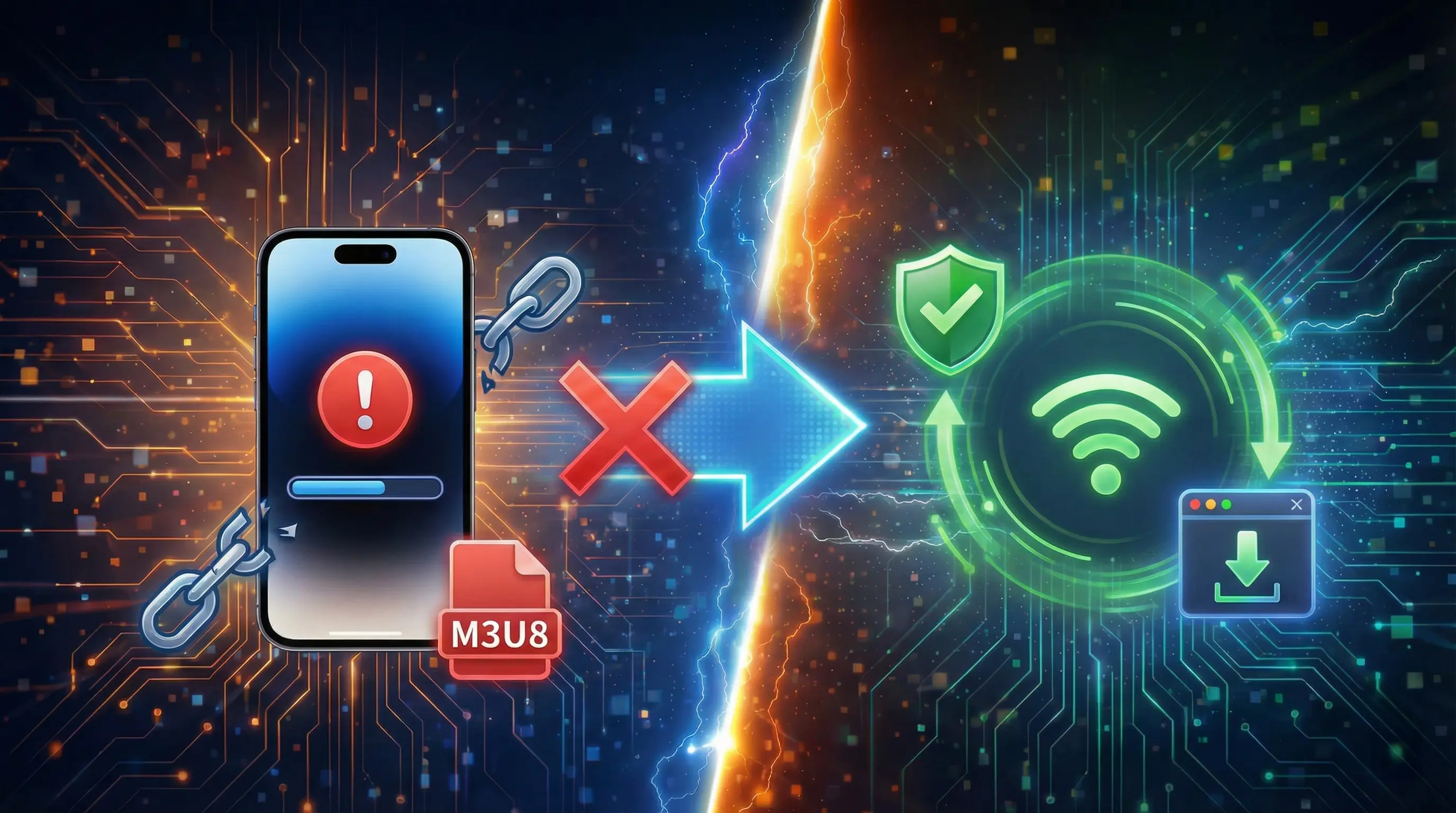
Why Is Downloading M3U8 on iPhone So Difficult?
iOS Sandbox Restrictions
Every app on iPhone runs inside a "sandbox" and cannot freely access other apps' files or system directories. This means:
- Files downloaded by Safari can only be saved to designated folders in the Files app
- The browser cannot execute command-line tools like FFmpeg
- Third-party apps cannot read/write the file system as freely as desktop apps
Safari's "Special Treatment" of HLS
iOS Safari is one of the few browsers with native HLS support — but this support is one-directional:
- ✅ Safari can play M3U8 streams directly
- ❌ Safari will not offer a "Save As" option for streams
- ❌ Downloading an M3U8 link in Safari only saves the
.m3u8text playlist file, not the video content
That's why pasting an M3U8 URL into Safari immediately starts playback — but you won't find any "download video" button.
Browser-Based Tools on iOS Have Extra Limitations
Even when using browser-based download tools (like FFmpeg.wasm), iOS introduces additional constraints:
- Stricter memory limits: iPhone typically allocates only 1–2 GB to Safari; large streams easily crash the page
- Background execution restricted: Switching to another app may pause or terminate the download
- Lower WebAssembly performance: Mobile CPUs run Wasm significantly slower than desktop processors
Common iPhone M3U8 Download Errors
Error 1: Downloaded File Is Only a Few KB
Symptom: Download completes, but the file is tiny (a few KB) and can't be opened or played.
Cause: You downloaded the M3U8 playlist file itself — not the video segments it references. The M3U8 is just an index; the actual video is spread across dozens to hundreds of .ts segments.
Error 2: Safari Plays Instead of Downloads
Symptom: Pasting an M3U8 URL triggers playback, not a download.
Cause: When iOS Safari detects an HLS stream, it launches the native player instead of triggering a download. This is Apple's intentional design — it cannot be changed in settings.
Error 3: Third-Party App Download Stalls Mid-Way
Symptom: A download app's progress bar freezes or errors out partway through.
Cause: - The stream source has token time limits — segments downloaded too late return 403 errors - The app was backgrounded and the network connection was interrupted - Insufficient memory caused the system to terminate the app
5 Alternatives for Downloading M3U8 on iPhone
Option 1: Use the Shortcuts App
iOS's built-in Shortcuts app can automate some download workflows, but its capabilities are limited.
Works for: Simple, unencrypted public streams
Limitations:
- Cannot handle multi-segment stream merging
- Does not support AES-128 encrypted streams
- Too many manual steps for beginners
Option 2: Third-Party HLS Download Apps
Some apps on the App Store claim M3U8 download support — but be aware:
- Real-world results vary widely
- Some apps have security concerns
- Most free versions include ads or feature restrictions
Option 3: Convert on a Computer, Then Transfer to iPhone
This is currently the most reliable and recommended approach:
- Use FFmpeg on your computer to download and convert (one command)
- Transfer to iPhone via AirDrop or iCloud
- Play in the Photos or Files app
ffmpeg -i "https://example.com/stream.m3u8" -c copy output.mp4
Option 4: Browser-Based Tool (Short Videos Only)
For short videos (under 30 minutes, 720p or below), you can try using an online tool in your iPhone browser. Given iOS's stricter memory limits, prioritize shorter clips.
Option 5: Just Play Online (Safest Option)
If your goal is to watch rather than save, the simplest approach is to play directly in Safari. iOS natively supports HLS — the viewing experience is often better than on desktop browsers.
If you're experiencing issues with manual playback, try M3U8Go Online Player — paste the URL and play instantly. On desktop, the HLS Downloader handles downloading and merging directly in the browser with no installation.
iPhone-Specific Considerations
Memory Management
Safari on iPhone has a much lower memory ceiling than desktop browsers. When processing large streams:
- Close other Safari tabs first
- Close unnecessary background apps
- Ensure sufficient free storage space on the device
Network Stability
M3U8 download requires continuous downloading of many small files — network stability is critical:
- Use Wi-Fi rather than cellular
- Avoid downloading while in transit (commuting, etc.)
- Ensure the network won't automatically switch during the download
iOS Version Differences
Different iOS versions have varying levels of HLS and WebAssembly support:
- iOS 15+: More complete WebAssembly support
- iOS 17+: Improved Safari memory management
- Keeping your device updated to the latest iOS version is always recommended
FAQ
Can iPhone play M3U8 streams directly?
Yes. iOS Safari natively supports HLS — paste the M3U8 URL into Safari's address bar and it plays (assuming no source-side restrictions).
Why doesn't iPhone let me download streaming video?
This reflects Apple's design philosophy. iOS encourages users to stream content rather than download it — which is both a technical constraint and a rights-protection strategy.
Is there any guaranteed way to download M3U8 on iPhone?
There's no universal solution. If the stream has DRM, token expiry, or strong CORS restrictions, it cannot be downloaded on any device. For open, unprotected streams, converting with FFmpeg on a computer and transferring via AirDrop is the most reliable path.
Ready to test your M3U8 stream?
🚀 Try the M3U8 Online Player