
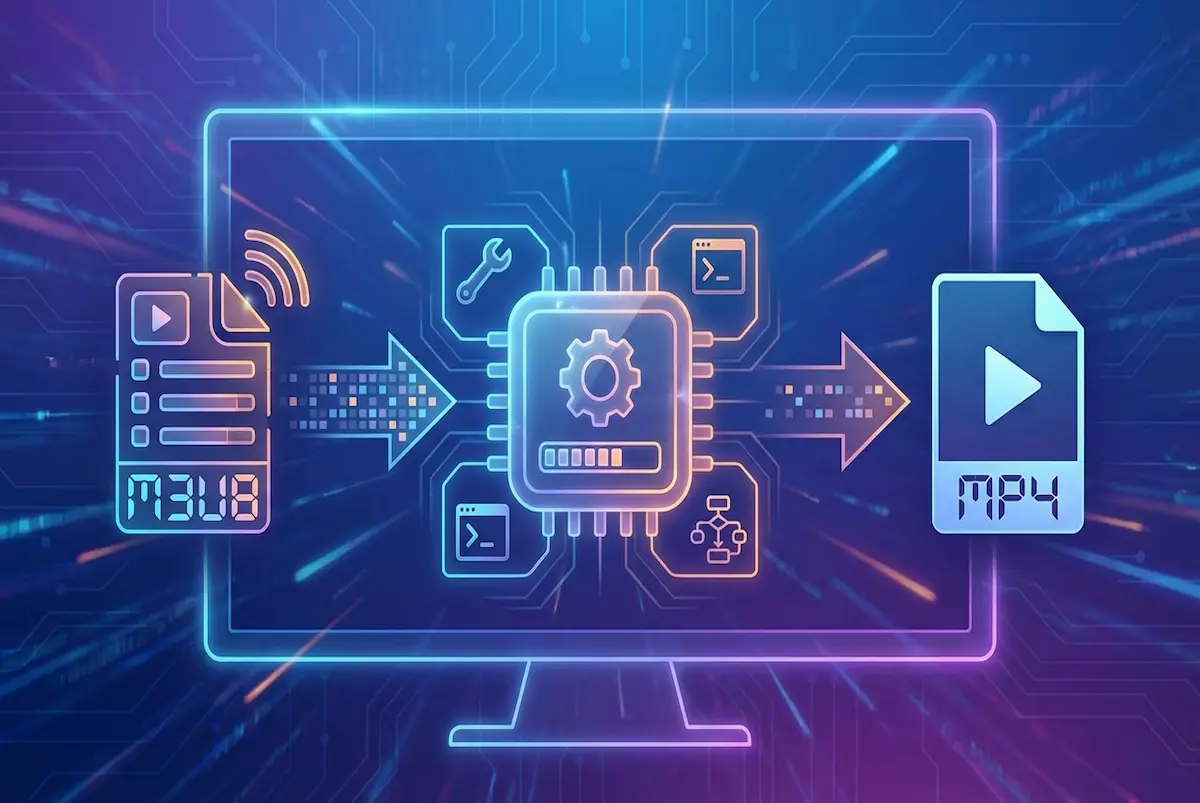
Why Does M3U8 Need "Conversion" Instead of Just Save As?
When you watch an M3U8 stream, your browser is continuously requesting one .ts packet after another and decoding them in real time. These segments:
- Are formatted as MPEG-2 Transport Stream (.ts)
- Are typically 2–10 seconds of video each
- Cannot be played directly in most media players (limited format support)
To get a video file that plays on any device, you need to:
- Download all
.tssegments - Merge them in order
- Remux into an
.mp4container (optionally: re-encode to change codec or reduce file size)
The Two-Level M3U8 Structure
Before downloading, you need to understand that M3U8 may have two levels:
Master Playlist
#EXTM3U
#EXT-X-STREAM-INF:BANDWIDTH=2800000,RESOLUTION=1280x720
720p/index.m3u8
#EXT-X-STREAM-INF:BANDWIDTH=1400000,RESOLUTION=854x480
480p/index.m3u8
#EXT-X-STREAM-INF:BANDWIDTH=700000,RESOLUTION=640x360
360p/index.m3u8
This file contains no segments — only paths to Media Playlists for each quality level.
Media Playlist
#EXTM3U
#EXT-X-TARGETDURATION:6
#EXT-X-VERSION:3
#EXTINF:6.006,
segment-001.ts
#EXTINF:6.006,
segment-002.ts
...
#EXT-X-ENDLIST
This is the actual playlist containing the .ts segment paths.
Conversion Methods
Method 1: FFmpeg -c copy (Direct Remux — Fastest)
ffmpeg -i "https://stream.example.com/720p/index.m3u8" \
       -c copy \
       -movflags +faststart \
       output.mp4
Notes:
- -c copy: No re-encoding — directly remuxes H.264 + AAC data from TS into an MP4 container
- -movflags +faststart: Moves the moov atom to the file start, enabling progressive download/playback
- Extremely fast, near-zero CPU usage, output size roughly equal to source
When to use: You just want the stream saved as an MP4 without changing quality or file size.
Method 2: FFmpeg with Re-encoding (Reduce File Size)
ffmpeg -i "https://stream.example.com/720p/index.m3u8" \
       -c:v libx264 -crf 23 -preset medium \
       -c:a aac -b:a 128k \
       -movflags +faststart \
       output.mp4
Notes:
- Use when you need to compress a high-bitrate source
- Much slower than -c copy — requires full CPU re-encoding
CRF Quality Guide
CRF (Constant Rate Factor) is the most important parameter for balancing quality and file size:
| CRF Value | Quality | File Size | Use Case |
|---|---|---|---|
| 18 | Near-lossless | Large | Archival / preservation |
| 20 | Very high quality | Somewhat large | High-quality storage |
| 23 | High quality (default) | Standard | General-purpose |
| 26 | Medium quality | Somewhat small | Mobile devices |
| 28 | Lower quality | Small | Storage-constrained |
Rule of thumb: Lowering CRF by 1 increases file size by about 10–15%. Visual differences typically become noticeable at 3–4 CRF steps apart.
Preset Speed Comparison
The -preset flag controls the trade-off between encoding speed and compression efficiency:
| Preset | Encoding Speed | Compression Efficiency | Recommended For |
|---|---|---|---|
| ultrafast | Fastest | Low | Testing / previews |
| fast | Fast | Slightly lower | Everyday conversions |
| medium | Standard | Standard | General recommendation |
| slow | Slow | High | Final output |
| veryslow | Very slow | Highest | Archival (when time isn't a constraint) |
Method 3: GPU-Accelerated Encoding (NVIDIA NVENC)
If you have an NVIDIA GPU, you can use hardware encoding for a 3–5x speed increase:
# NVIDIA GPU H.264 encoding
ffmpeg -i "https://stream.example.com/720p/index.m3u8" \
       -c:v h264_nvenc -preset p4 -cq 23 \
       -c:a aac -b:a 128k \
       -movflags +faststart \
       output.mp4
# NVIDIA GPU H.265/HEVC encoding (30–40% smaller files)
ffmpeg -i "https://stream.example.com/720p/index.m3u8" \
       -c:v hevc_nvenc -preset p4 -cq 25 \
       -c:a aac -b:a 128k \
       -movflags +faststart \
       output.mp4
| GPU Encoder | Supported Hardware | FFmpeg Parameter |
|---|---|---|
| NVIDIA NVENC | GeForce GTX 1050+ | -c:v h264_nvenc |
| Intel Quick Sync | Intel 6th gen+ | -c:v h264_qsv |
| AMD AMF | Radeon RX 400+ | -c:v h264_amf |
Trade-off: GPU encoding prioritizes speed. At the same bitrate, CPU encoding (libx264) produces slightly better quality — but the difference is barely noticeable in practice.
Method 4: Browser-Based FFmpeg.wasm (No Installation)
This site's HLS Downloader runs FFmpeg.wasm in the browser to handle merging, equivalent to:
ffmpeg -f concat -safe 0 -i concat.txt -c copy output.mp4
Best for: Quickly merging a small public stream without installing any software.
H.264 vs H.265 (HEVC): Which Codec to Choose?
When re-encoding, you'll need to choose a codec. Here's how they compare:
| Aspect | H.264 (AVC) | H.265 (HEVC) |
|---|---|---|
| File size | Baseline | 30–40% smaller |
| Quality (same bitrate) | Good | Better |
| Encoding speed | Fast | Slower (~2–3x) |
| Device compatibility | Nearly universal | Mainly post-2018 devices |
| Best for | Maximum compatibility / sharing | Storage savings / archival |
Bottom line: Choose H.264 for maximum compatibility, H.265 when you need to save storage space.
Batch Conversion (Multiple Files)
Convert multiple M3U8 streams at once with a simple shell script:
#!/bin/bash
# List M3U8 URLs in urls.txt, one per line
counter=1
while IFS= read -r url; do
    echo "Converting: $url"
    ffmpeg -i "$url" -c copy -movflags +faststart "output_${counter}.mp4"
    counter=$((counter + 1))
done < urls.txt
echo "All conversions complete"
Tool Comparison
| Tool | Installation | Speed | GPU Support | CORS Limited | Best For |
|---|---|---|---|---|---|
| FFmpeg (CPU) | Required | ★★★★★ | — | Bypassable | Developers, technical users |
| FFmpeg (GPU) | Required | ★★★★★+ | ✅ | Bypassable | Users with dedicated GPU |
| VLC | Required | ★★★ | — | Bypassable | General users |
| Browser tool (this site) | None | ★★★ | — | Restricted | Quick testing |
| Online converters | None | ★★ | — | Varies | Non-technical users |
Common Issues & Fixes
No Audio After Conversion?
Usually because the audio track is AC-3 (Dolby) or EAC-3, which many MP4 players don't support. Fix by re-encoding audio to AAC:
ffmpeg -i input.m3u8 -c:v copy -c:a aac -b:a 128k output.mp4
If there's no audio at all, check the stream info with ffprobe:
ffprobe -i input.m3u8 -show_streams 2>&1 | grep codec_type
For detailed audio troubleshooting: 👉 M3U8 to MP4 Has No Audio? Complete Fix Guide
Audio/Video Out of Sync?
A/V sync issues usually result from PTS/DTS timestamp discontinuities in the TS segments. Fix by regenerating timestamps:
ffmpeg -fflags +genpts -i input.m3u8 -c copy output.mp4
If that doesn't work, try re-encoding the audio while regenerating timestamps:
ffmpeg -fflags +genpts -i input.m3u8 \
       -c:v copy -c:a aac -b:a 128k \
       -async 1 output.mp4
Conversion Freezes or Stalls Midway?
- Network issue: Add
-reconnect 1 -reconnect_streamed 1for auto-reconnection - Browser memory (wasm tool): Split long videos into shorter sections
- Encrypted stream: Check for
#EXT-X-KEYand ensure FFmpeg has the right headers
M3U8 Is Encrypted?
If the M3U8 contains #EXT-X-KEY:METHOD=AES-128,URI=..., the segments are encrypted. FFmpeg handles AES-128 automatically. DRM (Widevine, FairPlay) is hardware-level protection that no public tool can handle.
More on encryption: 👉 M3U8 Encryption & DRM Explained
Want MKV Instead of MP4?
MKV (Matroska) supports more codecs and subtitle formats than MP4. Simply change the output extension:
ffmpeg -i input.m3u8 -c copy output.mkv
Related Resources
Ready to test your M3U8 stream?
🚀 Try the M3U8 Online Player